Best Practices for Organising Documents in SharePoint

If you've ever struggled to find a document in SharePoint, you're not alone. Without a solid plan, your document library can quickly become a chaotic mess of files, folders, and frustration. But don’t worry—I'm here to help you understand the best practices for organising documents in SharePoint. Below are some tips to simplify your SharePoint libraries to keep your documents organised, searchable, and easy to manage.
Free: Get the M365 Map — start with where everything belongs before organising it.
hub.simplysharepoint.com/m365-map
Download the M365 Map1. Ditch Deep Folder Structures
One of the biggest mistakes I see is people creating folder structures that go on forever. If your file path looks like this:
Company Documents > Projects > 2024 > Clients > Client A > Contracts > Final > Contract_v3_final_FINAL.docx
…then we need to talk.
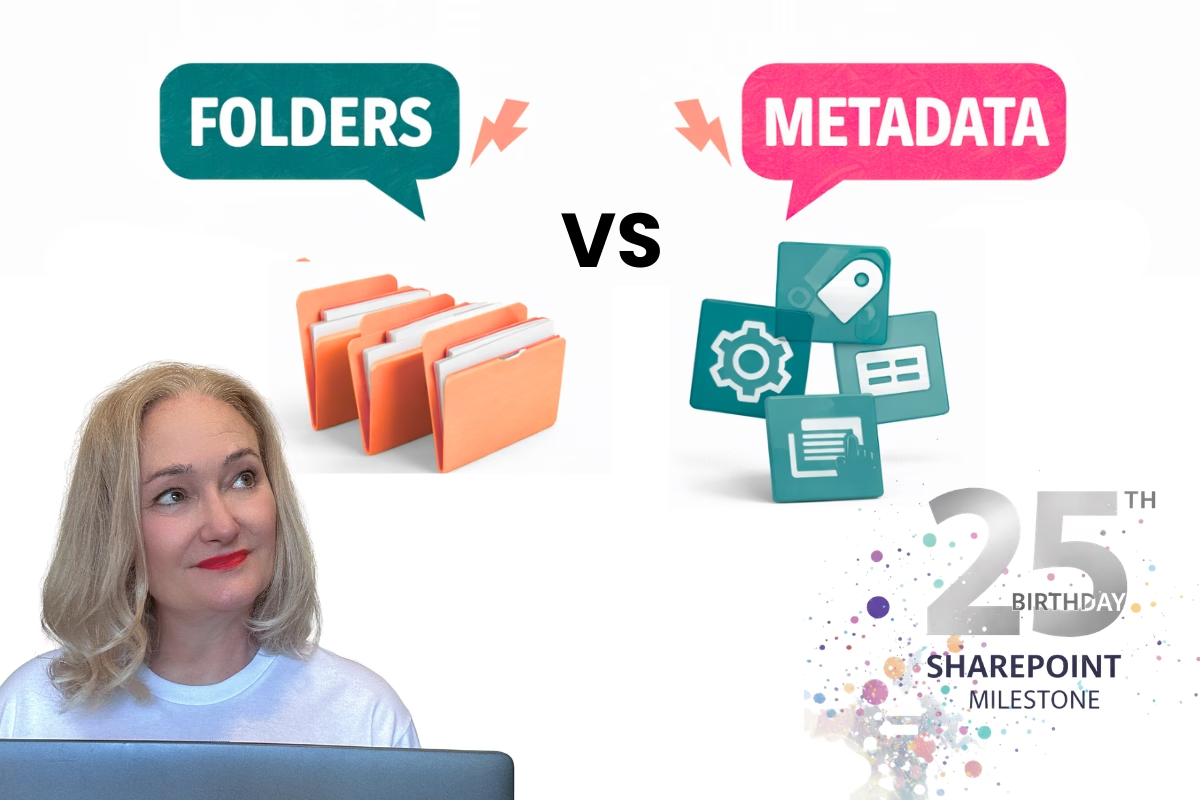
Deep folder structures make it harder to find files and often lead to duplication when people can't locate what they need. Instead, keep folder structures shallow—ideally no more than three levels deep—and rely on metadata to categorise and filter documents.
2. Use Metadata Instead of Folders
Metadata is the real game-changer in SharePoint. Instead of burying files in layers of folders, you can tag them with relevant details like:
- Document Type (Policy, Contract, Invoice, Meeting Minutes)
- Department (HR, Finance, Marketing)
- Status (Draft, In Review, Approved)
- Project Name (if applicable)
Once you've added metadata, you can use views and filters to find documents instantly—no digging through folders required.
3. Create Custom Views for Easy Access
Not everyone needs to see the same set of documents. In SharePoint, you can create different views to make it easier for teams to find what they need.
Some useful views include:
✅ Recently Modified – Shows the latest updates at a glance.
✅ My Documents – Displays files created or modified by the current user.
✅ Approval Status – Lists documents based on their workflow status.
With views, people can quickly access relevant files without sifting through unnecessary information.
4. Use Naming Conventions Consistently
Clearly name your documents, libraries, lists and sites. Use natural language. To learn more about naming conventions and best practices visit the blog post: We Don’t Need Naming Conventions Anymore (And SharePoint Proved That Years Ago)
5. Enable Version History to Avoid ‘Lost Edits’
SharePoint automatically tracks changes if you enable version history. This means you can:
Restore previous versions if something gets deleted or overwritten
See who made what changes and when
✅ Prevent people from creating multiple copies of the same document
No more "Final_V2_John’s_Edits_Approved_NEW_FINAL.docx" nightmares!
6. Automate Workflows
If you’re still manually chasing approvals or waiting for someone to “let you know when it’s done,” it’s time to automate. SharePoint and Power Automate make it easy to streamline updates and keep everyone informed by allowing you to:
• Create Power Automate flows that send notifications when files are added, updated, or need attention.
• Build approval workflows so documents move through review steps automatically.
• Trigger reminders, tasks, or follow-ups without relying on manual emails.
Automation keeps your team aligned, reduces bottlenecks, and eliminates the endless email chains that slow work down.
7. Control Permissions Properly
Nothing derails document management faster than the wrong people having the wrong access. Some key permission tips:
Use SharePoint groups rather than assigning permissions to individual users.
Stick to least privilege access—only give users the access they need.
Break inheritance sparingly—overriding default permissions at the file level can quickly become a nightmare to manage.
Set up clear read, edit, and contribute roles so documents are secure but accessible.
8. Train Your Team on Best Practices
Even the best system won’t work if people don’t follow it. Take the time to:
Run quick training sessions or share video walkthroughs.
Create a "How We Use SharePoint" guide.
Regularly review and refine your document management approach.
If everyone understands the structure, finding documents will be effortless.
Keep It Simple, Keep It SharePoint
A well-organised SharePoint document library saves time, reduces frustration, and helps your team work smarter. By ditching deep folders, embracing metadata, using views, and automating workflows, you’ll transform SharePoint into a powerful, user-friendly document management system.
The step-by-step system: The File Sanity Kit — audit, restructure, and future-proof your SharePoint.
hub.simplysharepoint.com/file-sanity-kit
Get the File Sanity Kit
Hi, I’m Liza 👋
<p style="margin:0 0 12px 0; font-size:15px; line-height:1.6; color:#374151;">
  I’ve been working with SharePoint for nearly two decades, across consulting and in-house roles, helping organisations
  design, clean up, and scale their Microsoft 365 environments.
</p>

<p style="margin:0 0 12px 0; font-size:15px; line-height:1.6; color:#374151;">
  My focus is information architecture — the unglamorous but critical layer that determines whether search works,
  governance sticks, and tools like Copilot help… or quietly make things worse.
</p>

<p style="margin:0 0 12px 0; font-size:15px; line-height:1.6; color:#374151;">
  Through Simply SharePoint, I share practical, real-world guidance on structuring libraries, designing metadata,
  managing permissions, and fixing the kinds of issues that naming conventions, policies, and “best practice” slides
  never really solve.
</p>

<p style="margin:0; font-size:15px; line-height:1.6; color:#374151;">
  Everything here is based on how SharePoint is actually used — not how we wish it was used — with a strong emphasis
  on foundations that scale and hold up in the AI era.
</p>