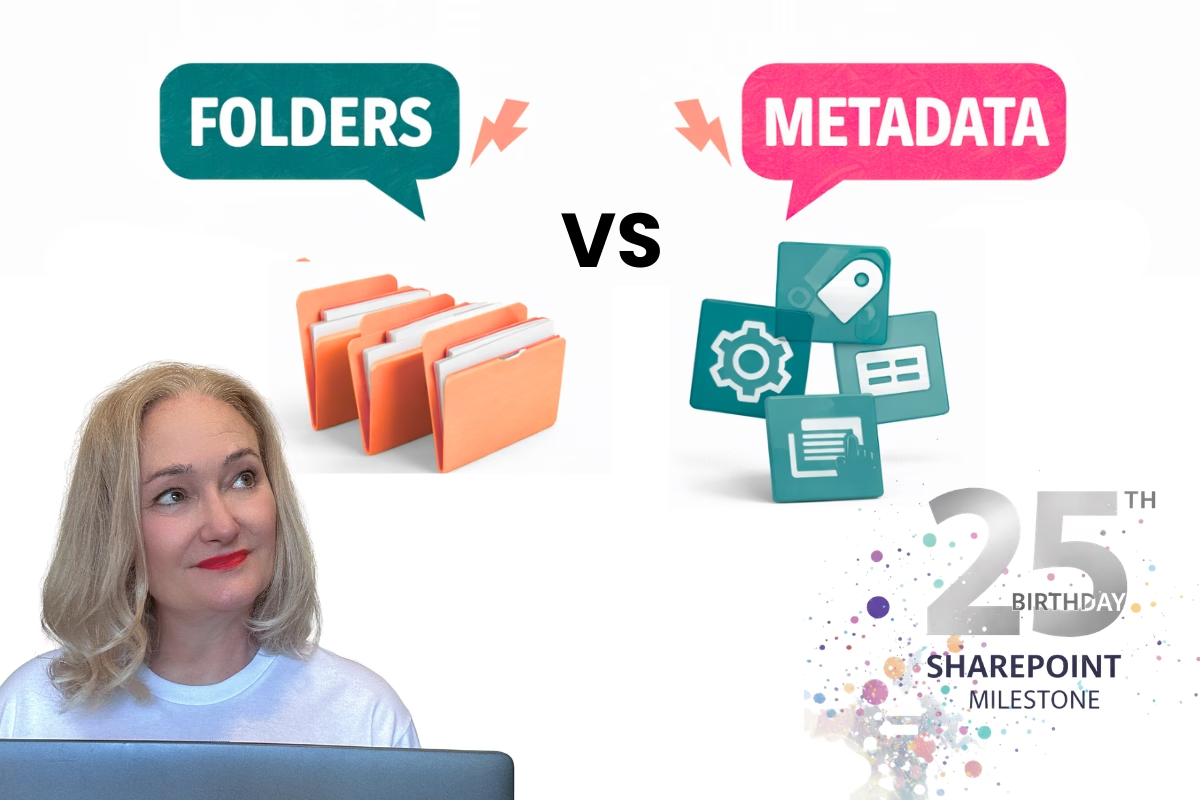
Metadata vs. Folders in SharePoint: Finding the Right Balance

For anyone familiar with SharePoint, the debate over metadata vs. folders in SharePoint has likely come up more than once. It’s a topic that can spark spirited conversations, especially when working with end users who are often resistant to change. After years of working with SharePoint, I’ve found that both folders and metadata have their place in building effective solutions. The key lies in striking the right balance and designing a system that respects how people like to work while unlocking the power of metadata.
What is Metadata?
Metadata is often described as “data about data.” In the context of SharePoint, it’s the descriptive information attached to a file that makes it easier to find, filter, and group content. Examples of metadata include:
- Document Type (e.g., template, policy, procedure)
- Function (e.g., Human Resources, Finance, Marketing)
- Author
- Date Created
Unlike folders, metadata allows you to sort and filter documents dynamically. For example, you can view all templates across a library regardless of which folder they’re stored in, or quickly filter documents by department.
Why Folders Still Matter
Let’s be honest: folders are familiar, and for many users, they’re comfortable. People have been working with folder structures for decades. However, folders have their limitations:
- Files can get buried deep in overly complex hierarchies.
- Rigid organisation: A document can only exist in one folder, which can make finding it a challenge if multiple teams need access.
- Limited searchability: SharePoint search works better with metadata than folders.
The Case for Combining Metadata and Folders
The good news is that you don’t have to choose one over the other. By leveraging column default tagging in SharePoint, you can integrate folders with metadata seamlessly. This approach helps ease users into metadata while maintaining the folder structures they know and love.
Building the Solution: A Practical Example
Imagine a SharePoint library for Human Resources. This library contains different types of documents such as policies, templates, and procedures. You decide to structure the library with folders to group documents by type:
- Policies
- Templates
- Procedures
By using column default tagging, each folder automatically applies metadata to its contents:
- Documents in the “Policies” folder are automatically tagged with the metadata Document Type = Policy.
- Documents in the “Templates” folder are tagged with Document Type = Template.
- Documents in the “Procedures” folder are tagged with Document Type = Procedure.
In addition, you could use metadata to tag the entire library with Function = Human Resources, ensuring every document has a consistent functional classification.
Metadata Unlocks Powerful Views
Once your library is structured with metadata, you can create a variety of views to cater to different needs:
- By Document Type: Group all templates, policies, and procedures regardless of their folder.
- By Function: If you’re managing documents for multiple departments, users can filter for HR-specific content.
- By Last Modified Date: Show the most recently updated documents across the library.
These views make it easier for everyone to find what they need, whether they’re comfortable navigating folders or prefer metadata-driven filters.
Best Practices for Using Folders with Metadata
If you’re incorporating folders into your SharePoint library, keep these best practices in mind:
- Limit folder depth: Stick to a maximum of two levels deep to avoid the “folder maze” problem.
- Default metadata tagging: Use column default tagging to automatically apply metadata to files added to folders.
- Educate users: Teach users how to switch between folder navigation and metadata-driven views. This helps them appreciate the benefits of both.
A Balanced Approach
Folders and metadata don’t have to be adversaries. By designing your SharePoint libraries thoughtfully, you can blend the familiarity of folders with the power of metadata. This approach ensures your users are comfortable while taking full advantage of SharePoint’s capabilities.
What are your thoughts? Have you found ways to balance metadata and folders in SharePoint? Let me know in the comments!