How to Stop Losing Documents in SharePoint

Let’s be honest—losing a document in SharePoint feels a bit like losing your phone in your own handbag. You know it’s in there, somewhere, buried beneath layers of folders, versions, or temporary file dumps—but somehow, it’s nowhere to be found when you need it most.
Even as a SharePoint consultant, I’m not immune. There have been moments—yes, plural—where I’ve sat there on a Teams call, frantically searching for a file I know exists, asking Copilot for help, only to come up empty-handed. That’s the moment the panic sets in and you wonder: “Did I accidentally save it to my desktop? Or was it in my OneDrive… or that temp folder I created last week?”
So let’s stop pretending SharePoint is the problem. It isn’t. It’s how we’re using it. And the good news is—you can fix it.
Why You’re Losing Documents (And It’s Not Just You)
SharePoint is powerful—but it’s not psychic. If you’re treating your site like a digital filing cabinet, with endless nested folders, vague names like “Final_V2_RealThisTime” and zero metadata, you’re going to have a bad time.
I’ve worked with dozens of clients who migrated everything over from shared drives, dumped it into a document library and assumed SharePoint would somehow make it all better. It won’t. In fact, bad practices just follow you—and often get worse.
At one client site, I found a folder called “Marketing_Stuff" inside another folder called “Old Docs" which contained… you guessed it… a single Word file named “new.doc” That same file existed in two other libraries across the site. This isn’t uncommon. And it’s why findability collapses so quickly.
From Folders to Findability: A Better Way
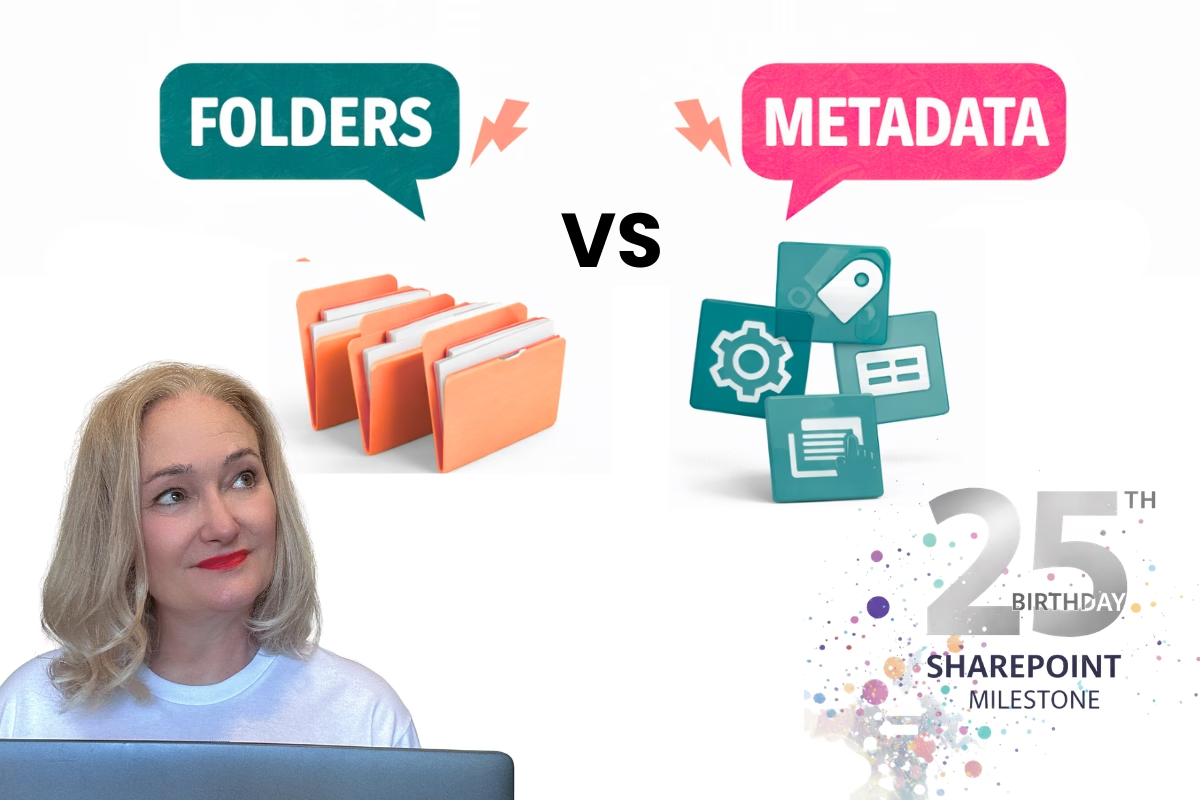
If you want to stop losing documents, you need to stop relying on folders alone. You can still use them, as I have referred to hybrid and folder structures in other posts, but not just folders.
This is where metadata comes in. Think of it like adding sticky labels to your files that actually mean something. Project name, document type, year, team—it’s all searchable, sortable and way easier to maintain.
I remember the first time I watched metadata in action on a properly structured site—it was like magic. It was over a decade ago when I first started using SharePoint and my colleague asked, “Can I just see all the templates from the HR team ?” We clicked a filtered view, then every file she needed was right there.
Compare that to dragging open folder after folder hoping to remember where you saved things. Metadata doesn’t just make things easier to find—it changes how you work.
Search Isn’t a Fix—It’s a Crutch
When things go missing, most people jump straight to Search. But if your files haven’t been tagged properly—or if they’ve got vague titles like “Doc1” or “Notes_Meeting”—Search is going to struggle.
In one project, the client had spent months tweaking their search settings and search schema to “make things easier to find.” But under the hood, their libraries were a mess. Folders within folders, no naming conventions, no metadata—just chaos. No amount of search customisation could fix that.
Even Copilot can’t help you if the content isn’t structured. Believe me, I’ve tried.
Yes, Even I Lose Documents Sometimes
I’ll admit it. As much as I preach good SharePoint habits, I’m not perfect.
There are days I dump documents into OneDrive with every intention of moving them later. I create folders like “Metadata_Report_June” or “Scratch Documents” and convince myself I’ll get to it soon.
Sometimes I do. Sometimes I don’t.
And when I need a specific file in a hurry? I’ll ask Copilot. Sometimes it helps. But there have also been moments where even Copilot just brings up random documents/emails/chats totally unrelated to what I was searching for. I'll address that in another post..
What’s helped me the most is creating intentional storage zones in OneDrive—areas I know are temporary. I then try to move documents out of these storage zones at the end or beginning of each day to keep on top of things. I've written a post about this process here.
5 Simple Fixes That Make a Huge Difference
Want to stop losing documents? Start small:
- Name files clearly
No more “draft1” or “final_final_use_this_one.” Use dates, subjects, and clarity. - Add metadata columns
Even just “Document Type” and “Function” can transform your library. - Use views to your advantage
Create filtered views for teams, years, document status—you name it. - Set a “No Dump Zone” policy
Have a dedicated place for working files but commit to moving and tagging them weekly. - Show your team how to tag and save properly
Most of the time, people just don’t know how or why. A quick walkthrough goes a long way.
Clean Content = Copilot-Ready
As AI tools become part of daily work, having a clean SharePoint library isn’t just “nice to have”—it’s essential.
If you want to ask Copilot to “show me the latest risk register” or “summarise last quarter’s HR reports,” then your documents need to be named clearly, tagged properly, and stored where they belong.
I’ve helped clients clean up their libraries ahead of Copilot integration and the difference is night and day. When it works, it really works.
The Bottom Line: Tidy Up Weekly, Not Just When It’s Broken
You don’t have to do it all at once. Start with one library. Add two metadata columns. Create one helpful view. Make it a weekly habit.
It’s just like tidying your desk—leave it long enough, and it gets overwhelming. But stay on top of it and your future self will thank you. And hey, even if you’re a SharePoint consultant like me… there’s no shame in admitting your files get messy. The key is having a system—and sticking with it.