Boost Workplace Collaboration with SharePoint: Best Practices You Need to Know

If your organisation struggles with scattered files, duplicated documents, confusing folder structures, or Teams channels full of outdated attachments, you’re not alone. Most workplaces want better collaboration but lack a clear foundation behind the tools they are already using. This is where SharePoint becomes essential. With the right structure, SharePoint transforms how teams communicate, collaborate, and manage information. In this guide, I’ll share the best practices I use with clients to help them streamline collaboration, improve document management, and build a more organised and productive digital workplace.
Free: Download the M365 Map — collaboration works better when everyone saves in the right place.
hub.simplysharepoint.com/m365-map
Download the M365 MapWhy SharePoint Is the Engine of Collaboration in Microsoft 365
SharePoint is no longer a stand-alone document library. It is the foundation of collaboration across Microsoft 365. It powers the files in Teams, integrates with OneDrive, and acts as the single source of truth for information across your organisation. When implemented correctly, SharePoint delivers secure link-based sharing, real-time co-authoring, comprehensive version history, and structured information architecture that supports both users and Microsoft 365’s search and AI capabilities.
SharePoint improves collaboration by enabling simple and secure sharing, allowing multiple people to co-author documents at the same time, providing version history for tracking and recovering changes, and offering metadata and structure for organised information. When these features work together, teams collaborate faster, more consistently, and with fewer mistakes.
Best Practices for File Sharing, Co-Authoring and Working Together
1. Always Share Links Instead of Attaching Files
Attaching documents to emails creates duplicates, breaks version control, and results in team members editing the wrong copy. Instead, share links to documents stored in OneDrive or SharePoint. This ensures everyone works on the same file and all updates remain centralised.
2. Draft in OneDrive and Collaborate in SharePoint
Use OneDrive for personal drafts and private early-stage work. When a document is ready for review or collaboration, move it into a SharePoint library. This workflow keeps private drafts separate and ensures team documents are stored where they belong.
3. Use Real-Time Co-Authoring with Team Communication
SharePoint supports real-time co-authoring in Word, Excel and PowerPoint. To avoid conflicts, teams should communicate during editing, use the comments feature for clarity, and avoid downloading documents for offline editing unless necessary.
4. Rely on Version History to Protect Your Work
Version history lets you restore earlier versions, track changes, and recover overwritten work. It is essential for long-running projects, review cycles and teams that frequently revise shared content.
Structuring Your SharePoint Site for Effective Teamwork
A well-designed SharePoint site is the foundation of a productive digital workplace. Structure, not storage, is what makes SharePoint effective.
1. Align Microsoft Teams Channels with SharePoint Libraries
Every Teams channel maps to a folder in the linked SharePoint document library. Create logical Teams channels and map them intentionally to SharePoint folders. This ensures team members always know where to save and find files.
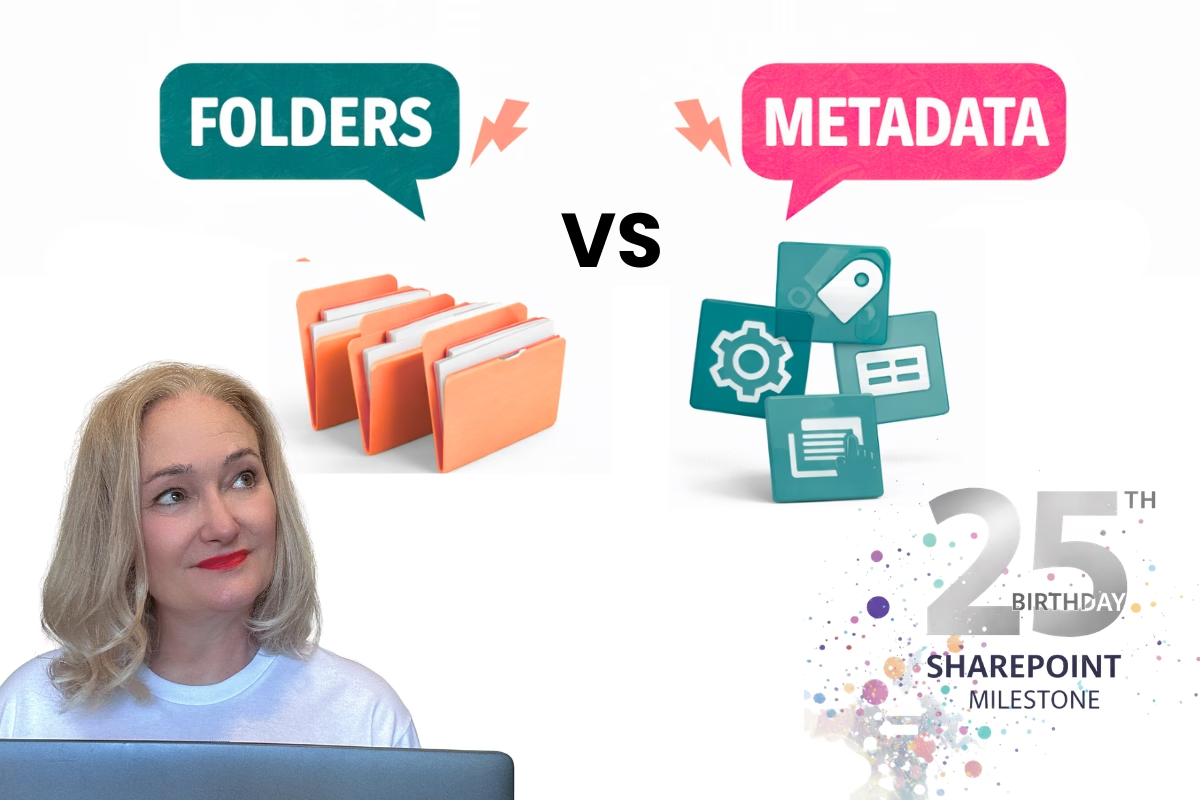
2. Use Metadata to Organise Documents
Metadata makes information searchable, filterable and reusable. Instead of relying heavily on nested folders, use metadata such as document type, department, project name or status to classify and organise documents. Metadata supports better navigation and prepares your content for Copilot and Microsoft Search.
3. Create a Simple, Purpose-Driven Folder Structure
While metadata is essential, simple folders still play a role. Avoid deep hierarchies and create top-level folders that match your team’s work. For example: Projects; Project A; Project B; Policies and Procedures; Templates; Training Materials. Combine clear folders with metadata to create the most efficient structure.
Enhancing Collaboration with Microsoft Teams
SharePoint and Teams are not separate systems; they work together. Teams provides communication and conversation, while SharePoint provides structure and file storage.
1. Use Teams for Communication and SharePoint for File Management
Share links to files directly in Teams channels. Keep discussions about documents within the corresponding Teams channel. This ensures transparency and keeps conversations tied to the correct files.
2. Pin Important Files for Quick Access
Teams allows you to pin frequently used documents at the top of a channel. Pin policies, templates, project plans or dashboards to make them easy to find and reduce time spent searching.
Key Takeaways for Your Team
- Share links rather than attaching files to maintain version control.
- Draft documents in OneDrive and move them to SharePoint for team collaboration.
- Align Teams channels with SharePoint folders to keep structure clear.
- Use metadata and simple folders together for better organisation.
- Leverage version history to safeguard and manage content effectively.
Final Thoughts
SharePoint is one of the most powerful collaboration tools available, but only when it is set up correctly. When your organisation embraces link-based sharing, clear site structures, metadata, Teams integration and consistent workflows, collaboration becomes faster, more intuitive and more reliable. By following these best practices, you will unlock SharePoint’s full potential and build a more connected, efficient and collaborative workplace.
The complete collaboration guide: SharePoint Essentials — every feature, plain English.
hub.simplysharepoint.com/essentials-system
View SharePoint Essentials
Hi, I’m Liza 👋
<p style="margin:0 0 12px 0; font-size:15px; line-height:1.6; color:#374151;">
  I’ve been working with SharePoint for nearly two decades, across consulting and in-house roles, helping organisations
  design, clean up, and scale their Microsoft 365 environments.
</p>

<p style="margin:0 0 12px 0; font-size:15px; line-height:1.6; color:#374151;">
  My focus is information architecture — the unglamorous but critical layer that determines whether search works,
  governance sticks, and tools like Copilot help… or quietly make things worse.
</p>

<p style="margin:0 0 12px 0; font-size:15px; line-height:1.6; color:#374151;">
  Through Simply SharePoint, I share practical, real-world guidance on structuring libraries, designing metadata,
  managing permissions, and fixing the kinds of issues that naming conventions, policies, and “best practice” slides
  never really solve.
</p>

<p style="margin:0; font-size:15px; line-height:1.6; color:#374151;">
  Everything here is based on how SharePoint is actually used — not how we wish it was used — with a strong emphasis
  on foundations that scale and hold up in the AI era.
</p>